
Creating Your Swordfish Account
Getting started with Swordfish is quick and easy. You have two options:
Option 1: Start with the Free Trial
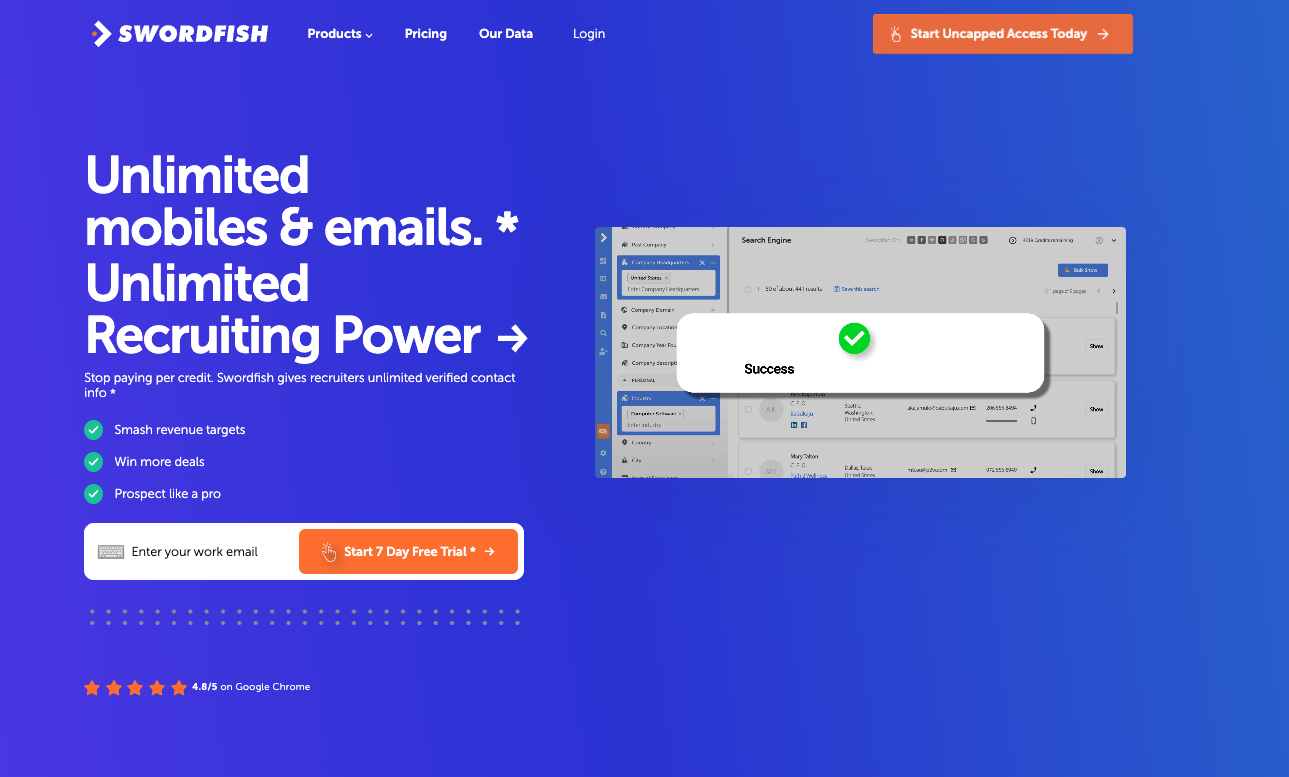
- Go to swordfish.ai
- Click Start Free Trial
- Enter your email and create a password
- Add your credit card information (you won't be charged)
- Confirm your account
About the free trial:
- Duration: 7 days
- What's included: 10 trial credits to use across Chrome Extension and Prospector
- What's NOT included: Reverse Lookup, File Upload, API access, or bulk features
- Pre-authorization hold: You'll see a $5 temporary hold on your card—this is standard verification and will be released within a few business days
- What happens after: Your trial automatically converts to a paid plan at the end of 7 days unless you cancel beforehand
If you want to cancel your trial before it converts to paid, contact support@swordfish.ai before your 7 days end.
Option 2: Choose a Plan and Get Started
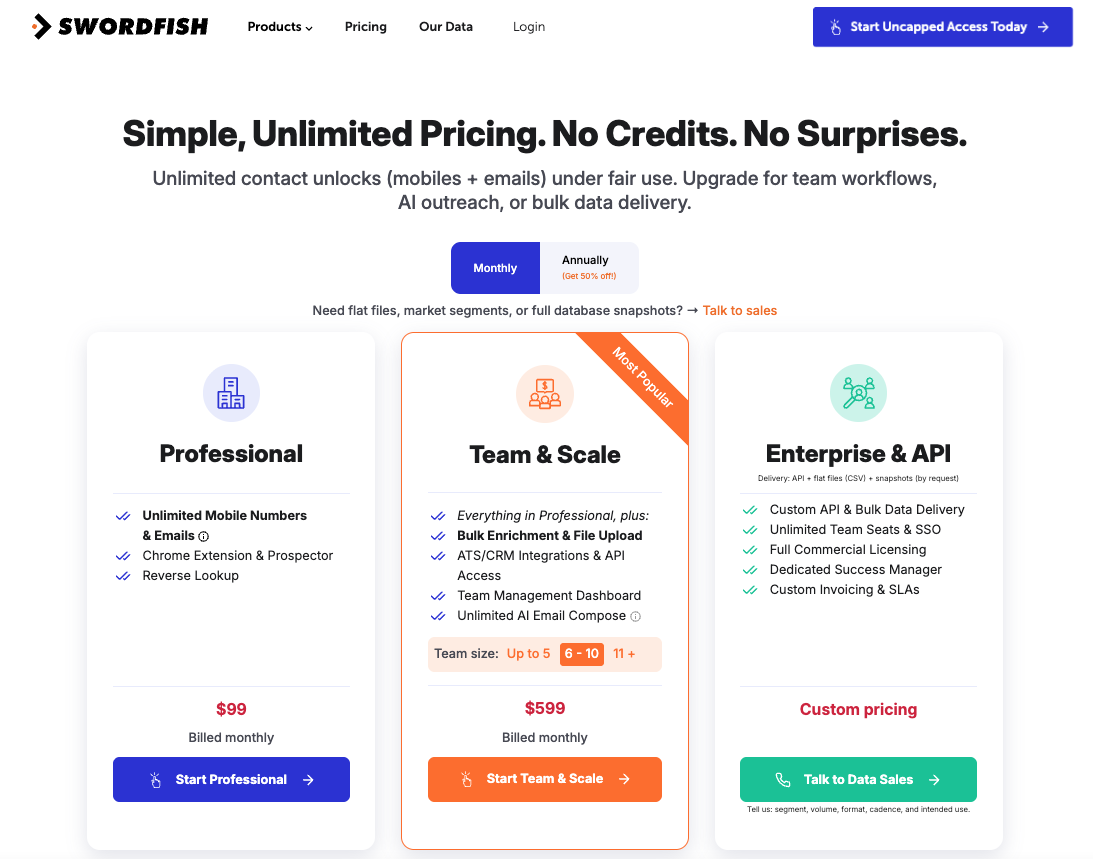
If you want to skip the trial and go straight to a paid plan:
- Go to swordfish.ai/pricing
- Click Get Started on your chosen plan
- Enter your email and create a password
- Add your payment method
- You're ready to use Swordfish
After You Sign Up
1. Install the Chrome Extension
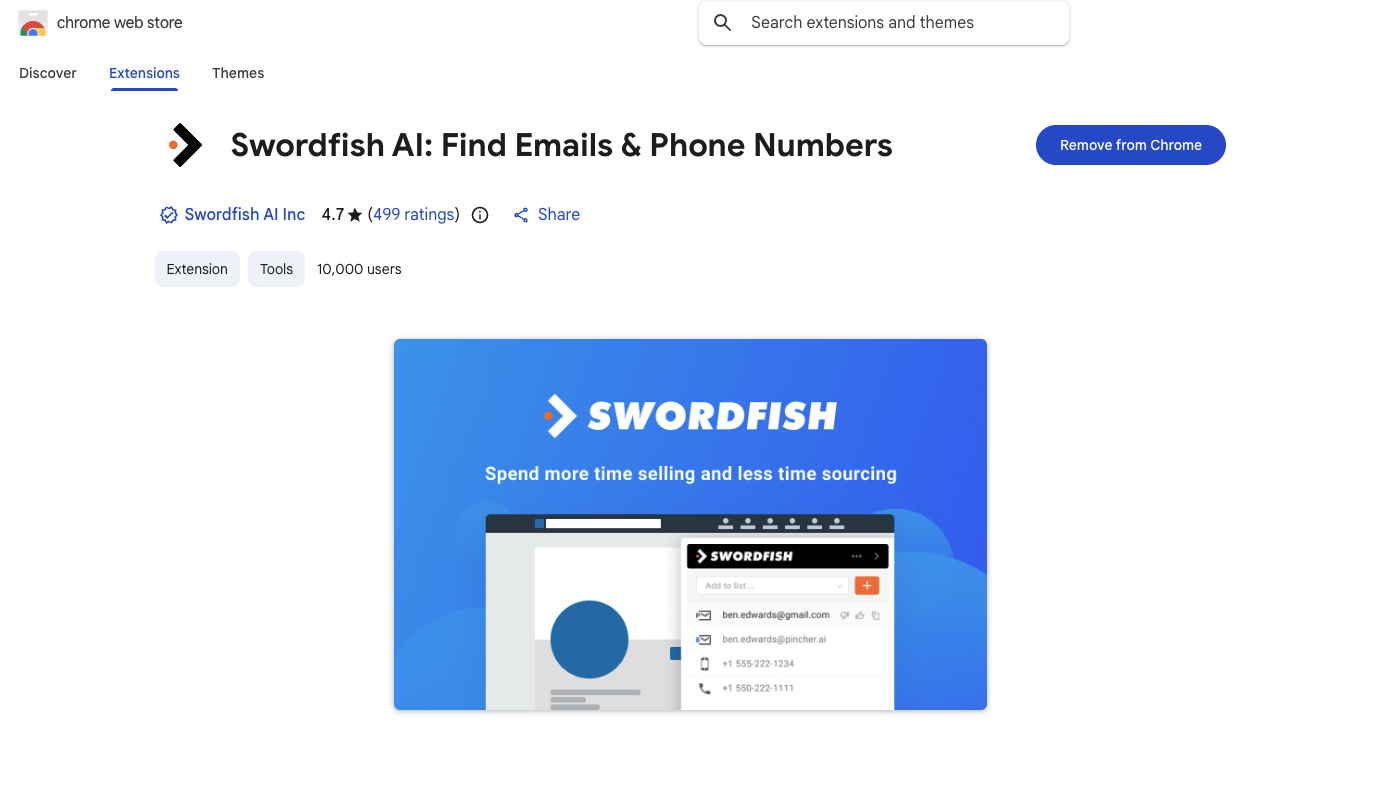
The Swordfish Chrome Extension is your fastest way to access contact data:
- Go to the Chrome Web Store
- Search for "Swordfish"
- Click Add to Chrome
- Once installed, click the Swordfish icon in your toolbar
- Log in with your Swordfish account
Your extension is now active. Visit any LinkedIn profile and you'll see the Swordfish side panel with available contact data.
2. Explore Prospector
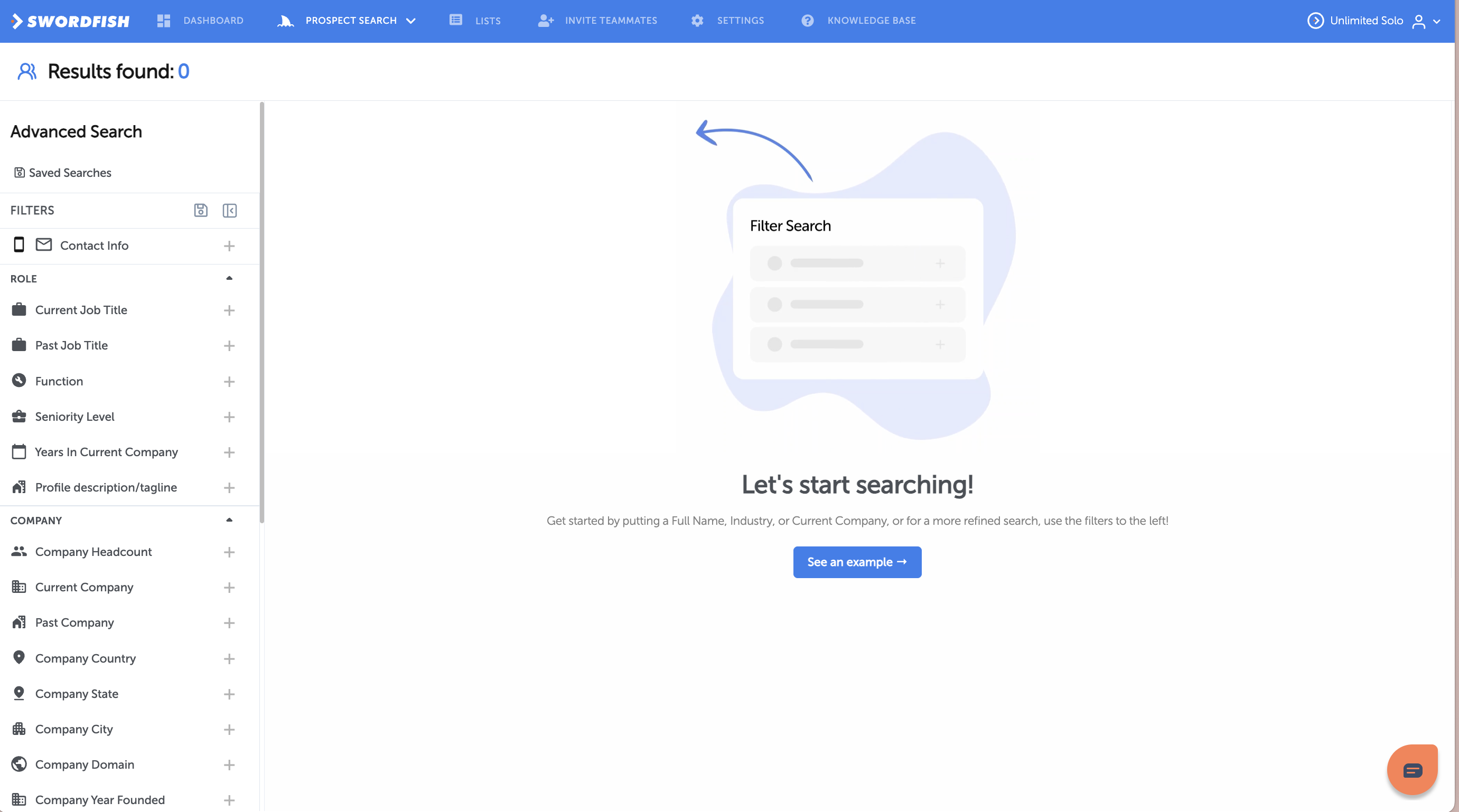
Prospector is your search and list-building tool:
- Log into your Swordfish account
- Click Prospector Search in the navigation
- Use the filters on the left to build your ideal prospect list (job title, company, location, industry, etc.)
- Run your search and reveal contact information
Start with a simple search: try searching by job title or company to see how Prospector works.
3. Try Reverse Lookup
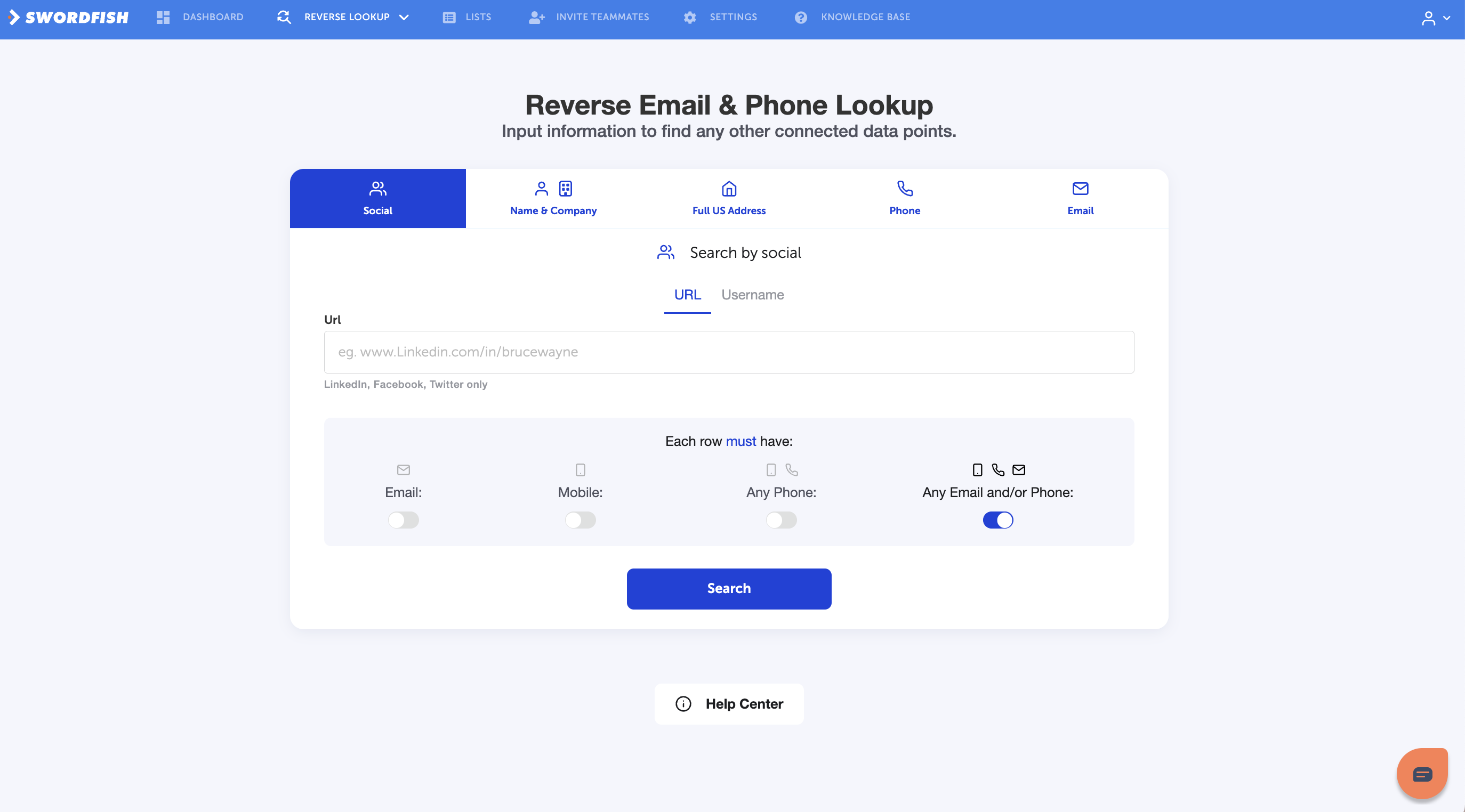
If you want to research someone specific:
- Click Reverse Lookup from the Data Tools menu
- Search by:
- Social profile (LinkedIn, Twitter/X)
- Email address
- Phone number
- Name and company
- Get back their connected data
Next Steps
Now that you're set up, here's what to explore:
- Chrome Extension: Browse LinkedIn and reveal contacts instantly
- Prospector: Build lists of prospects by company, job title, location, and more
- Reverse Lookup: Deep-dive on specific people
- File Upload: Enrich CSV files with contact data (if on Team & Scale plan)
- Integrations: Connect to your CRM (Salesforce, HubSpot, etc.) or Zapier for workflows
Billing & Plans
Your plan determines what features you have access to:
- Professional ($99/month): Chrome Extension, Prospector, Reverse Lookup
- Professional Annual ($49/month annual): Same as above plus Bulk Unlock
- Team & Scale ($599/month or $299/month annual): Everything, plus File Upload, integrations, and API
Need Help?
Questions during setup? Contact support@swordfish.ai or use the live chat in your dashboard. We're here to help!