
What Is File Upload?
File Upload lets you enrich a CSV or Excel file with verified contact information in bulk. Instead of searching for each person individually, upload your prospect list and Swordfish adds emails, phone numbers, and social profiles to all of them at once.
Perfect for follow-up lists, candidate screening, lead validation, and importing data to your CRM.
Who Can Use File Upload?
File Upload is available on:
- Professional Annual Plan (includes Bulk Unlock feature)
- Team & Scale Plan ($599/month or $299/month annual) and higher
It's not available on the Professional Monthly plan. If you need file upload, upgrade to Professional Annual or Team & Scale.
When to Use File Upload
- Conference follow-up — You have attendee names/emails and want verified contact info
- Webinar leads — Export attendee list and enrich with phone numbers and emails
- Email validation — Verify emails are real and get additional data (company, title, LinkedIn)
- Recruitment screening — Enrich candidate lists with verified contact info
- CRM import — Before importing, enrich your list with additional verified data
- LinkedIn exports — Export a LinkedIn search, upload to add phone numbers and emails
- List cleaning — Validate and deduplicate your existing list
Preparing Your File
Accepted Formats
- CSV (.csv)
- Excel (.xlsx, .xls)
What Data to Include
You can include any of the following columns:
Helpful for matching:
- Email address (most reliable for matching)
- LinkedIn profile URL (95%+ match rate)
- Full name
- First name + Last name
- Company name or domain
Other useful columns:
- Job title
- Phone
- Location (city, state, country)
- Website
- Any other information you have
Important: You don't need first name and last name. Email, LinkedIn URL, or even just a company name can work for matching.
Data Quality Tips
For best results:
- Remove duplicates before uploading
- Standardize company names (use "Amazon" not "AMZN" or "amazon.com")
- Fix obvious spelling errors (especially names and company names)
- Delete completely blank rows
- Use consistent email formatting (lowercase emails match better)
- Include company names when possible — "John Smith at Tesla" matches better than just "John Smith"
Upload Process
Step 1: Start Upload
- Go to File Enrichment (Data Tools menu)
- Click Upload file
- Select your CSV or Excel file (or drag-and-drop)
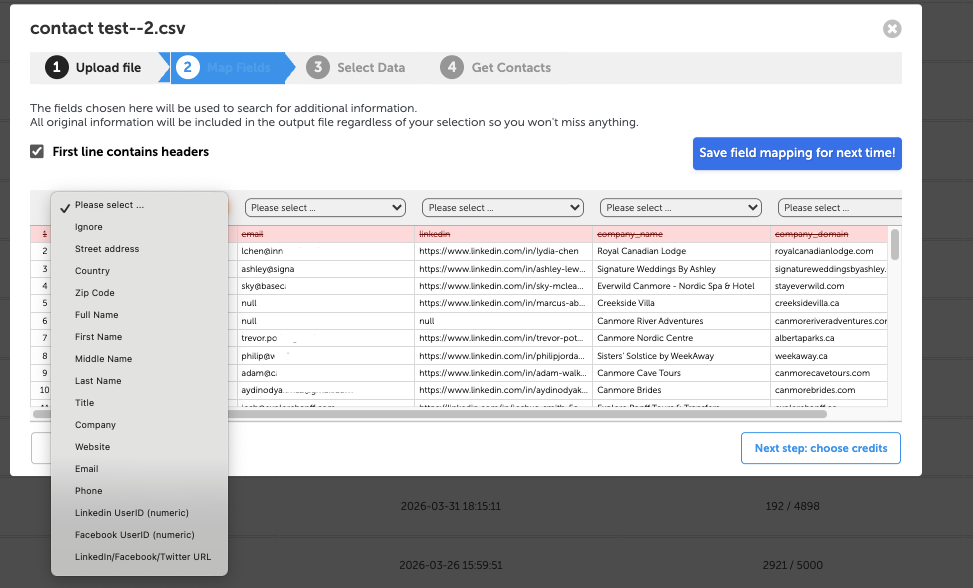
Step 2: Map Your Fields
Swordfish shows a preview of your file and asks you to map columns.
For each column in your file, select what it contains:
- Ignore (skip this column)
- LinkedIn (URL or LinkedIn ID)
- Company Name
- Company Domain
- Full Name
- First Name
- Last Name
- Title (job title)
- Country
- Zip Code
- Phone
- Website
- Facebook UserID
- LinkedIn UserID
The more information you provide, the better our matching. Include email, LinkedIn URL, or company name if possible.
Save field mapping — Check "Save field mapping for next time" so you don't have to map again
Step 3: Select Data (Optional)
Choose which fields Swordfish should use for enrichment. You can tell Swordfish to focus on specific fields for matching.
Step 4: Get Contacts
Understanding Results
Once processing completes, you'll see:
Results Summary
- Total rows — How many people you uploaded
- Matched — How many we found in our database with contact info
- Unmatched — How many we couldn't find
- Match rate — Percentage matched (e.g., 68%)
- Emails found — How many verified emails we discovered
- Phones found — How many phone numbers we found
Improving Your Match Rate
- Include email addresses — Email is our most reliable matching field
- Include LinkedIn URLs — Linked profiles almost guarantee a match
- Add company names — "John Smith at Google" matches better than just "John Smith"
- Include job titles — More context helps us match accurately
- Check for spelling errors — "Smyth" vs "Smith" or "google.com" vs "Google" matters
- Standardize formatting — Consistent company names and email formats work better
- Remove obvious duplicates — Duplicates waste processing and don't give you new results
Privacy & Security
- Your uploaded files are processed securely
- We enrich your data and return the results
- Your original file is permanently deleted after processing
- Your list is never stored long-term or shared with third parties
- All data is encrypted in transit and at rest
Troubleshooting
Low Match Rate
Try:
- Add email addresses or LinkedIn URLs (most reliable for matching)
- Check company names for spelling errors
- Include company names even if you only have names
What if enrichment fails?
Contact support@swordfish.ai with your file. We can review it, suggest optimizations, and help you get better results.
Getting Started
- Prepare your CSV or Excel file with names, emails, company info, or LinkedIn URLs
- Go to File Enrichment
- Click Upload file and select your file
- Map your columns (tell us what each column contains)
- Click Start enrichment
- Wait for processing to complete
- Download your enriched file with verified contact info
Questions? Contact support@swordfish.ai or use the live chat in your dashboard. We can review your file and help optimize your results.