
What Is Prospector?
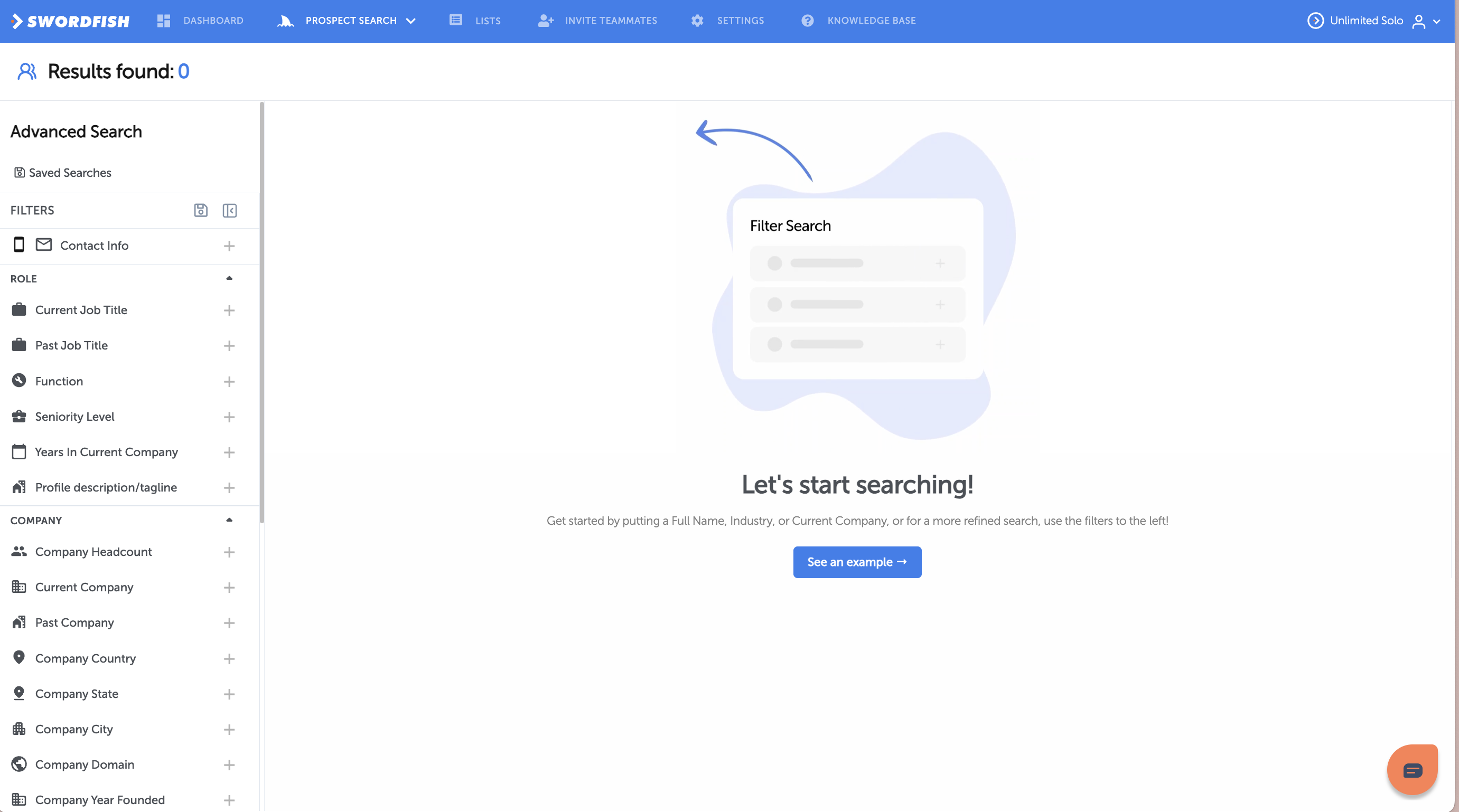
Prospector is your powerful search and list-building tool. Instead of finding one person at a time, build an entire list of prospects that match your exact criteria—then reveal all their contact information at once.
Want to find all VP of Sales at SaaS companies with 50-200 employees in California? Done. Need engineering managers at startups who use certain tools? Prospector handles that too.
How Prospector Works
- Set your filters — Use dozens of criteria to define your ideal prospect
- Run the search — Prospector finds everyone matching your criteria
- Reveal contact info — See emails, phone numbers, and social profiles for results
- Export or integrate — Download results as CSV or push to your CRM
Search Filters
Prospector gives you granular control with these filter categories:
Role Filters
- Current Job Title — Search by job title (e.g., VP of Sales, Head of Marketing)
- Past Job Title — Find people who held specific roles in the past
- Function — Sales, Marketing, Engineering, Finance, etc.
- Seniority Level — C-level, Director, Manager, Individual Contributor
- Years in Current Company — Find people tenured in their role
Company Filters
- Current Company — Search by company name
- Company Headcount — 1-10 employees, 11-50, 51-200, 201-500, 500+
- Industry — Focus on specific industries
- Company Location — HQ location (country, state, city)
- Company Domain — Search by website domain
- Company Year Founded — Find young or established companies
- Company Description — Search company tagline/description
Personal Filters
- Location — Country, state, or city
- Years of Experience — Filter by career experience
- Skills — LinkedIn skills (Python, Salesforce, Growth Marketing, etc.)
- Education — School or degree
- LinkedIn URLs — Filter by profile visibility
Advanced Filters
- Company Country / State / City — Geographic targeting
- NAICs Code / SIC Code — Industry classification codes
Running a Search
Basic Search
- Go to Prospector Search
- Enter a name, company, or job title in the search box
- Click Search
Advanced Search with Filters
- Go to Prospector Search
- Use the Filters panel on the left
- Click + next to each filter category to add criteria
- Example combination:
- Current Job Title: VP of Sales
- Company Headcount: 51-200
- Industry: SaaS
- Location: California
- Click Search
The results will show everyone matching all your criteria.
Viewing & Exporting Results
See Contact Information
Once your search returns results, you can:
- Click any person to see their full profile (email, phone, work history, social profiles, etc.)
- Copy contact info directly from results
- Bulk reveal — Select multiple people to reveal all contact information at once
Download or Export
- Download as CSV — Export results as a spreadsheet
- Push to CRM — If you're on a Team & Scale plan, integrate directly with Salesforce, HubSpot, Outreach, SalesLoft, or other CRMs
- Use with Zapier — Automate workflows with your exported data
Saved Searches
Save Your Search
If you create a search you'll run repeatedly:
- Set up your filters
- Run the search
- Click Save this search
- Name it (e.g., "B2B SaaS VPs - West Coast")
Your saved searches appear in the Saved Searches section for quick access later.
Pro Tips
- Start broad, then refine — Begin with one or two filters, then add more to narrow results
- Test with small criteria first — Run a search with just "industry" to see how many results you get, then add filters
- Save your best searches — Reuse successful search combinations repeatedly
- Combine with Reverse Lookup — Use Reverse Lookup to deep-dive on specific people from your list
- Use Prospector for list-building — This is the tool's strength; use it to build targeted lists before reaching out
Limitations & Fair Use
Prospector is unlimited for your plan, but subject to a fair use policy.
If you hit a fair use limit and can't search, contact support@swordfish.ai with your use case. We review requests case-by-case and often expand thresholds for legitimate power users.
Troubleshooting
"No results found"
- Try broadening your filters (remove 1-2 criteria)
- Check spelling of company/job title
- Use a more general job title (e.g., "Sales" instead of "Enterprise Sales Rep")
"Results are taking a long time"
- Very broad searches take longer to process
- Narrow your filters and try again
- Contact support@swordfish.ai if this persists
"I need to search by a specific criteria that isn't listed"
Getting Started
Ready to build your first list?
- Go to Prospector Search
- Pick one job title and one company or industry
- Run the search
- See who matches and click on them to view contact info
- Export your results and integrate with your CRM
Questions? Contact support@swordfish.ai or use the live chat in your dashboard.