
What It Does
The Swordfish Chrome Extension brings verified contact data directly to the websites where you're already searching. Visit a LinkedIn profile, and you'll see a side panel with available email addresses, phone numbers, and social profiles—all without leaving the page.
It's designed for speed: find someone, reveal their contact info, and move on. No extra tabs, no manual searching, no friction.
Installing the Extension
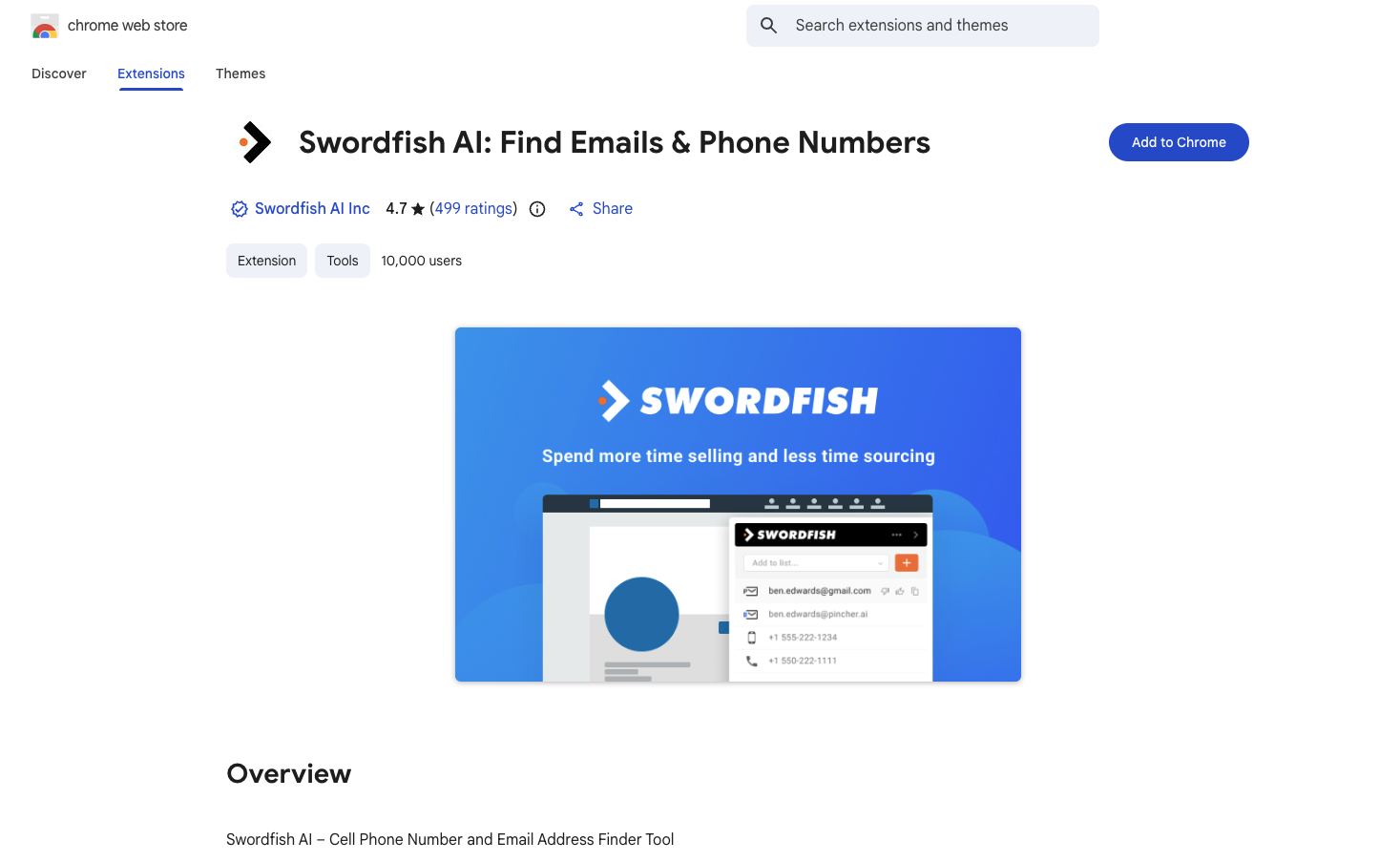
- Go to the Chrome Web Store
- Search "Swordfish" or use the direct link
- Click Add to Chrome
- Once installed, you'll see the Swordfish icon in your toolbar
- Log in with your Swordfish account and you're ready to go
Using the Extension on LinkedIn
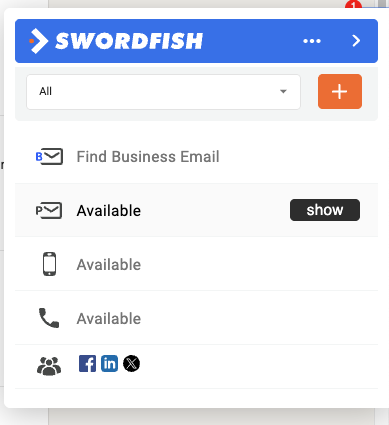
When you visit a LinkedIn profile, the Swordfish extension panel appears on the right side of the page. The panel shows:
- Find Business Email — Enter a name and company domain to search for verified business emails
- Business Email — Verified work email if available
- Phone — Mobile or office phone number if available
- Social profiles — LinkedIn, company info, and other connected accounts
Click the panel to reveal data. The extension doesn't show information automatically—you control when to unlock contact details.
Using the Extension on Twitter/X
The extension also works on Twitter/X profiles, showing available contact information in the same side panel format.
Find Business Email Feature
Didn't find the contact info you need? Use the Find Business Email tab:
- Enter the person's first and last name
- Enter their company's website domain
- Swordfish searches for verified business emails for that person at that company
This is especially useful for recently-promoted people, new hires, or professionals at companies with limited data coverage in our database.
Data Quality & Accuracy
Every email and phone number shown by the extension has been verified through our database. "Available" means we've confirmed the data is current and accurate. You can reach out with confidence.
If no data appears: We don't have verified information for that person yet. This happens with very private profiles, new professionals, or people at companies with limited data. No charge for searches with no results—you only pay for verified information revealed.
No cost impact: Searches through the extension that return no data don't count against your fair use limits (for unlimited plans) or your credits (for legacy plans).
Best Practices
- Use complete LinkedIn profiles — Full profile pages have richer data than search result snippets
- Try Find Business Email if you hit a miss — If the extension shows no data, use Find Business Email to search by name and company domain
- Verify with Reverse Lookup — For deeper research on someone, use Swordfish's Reverse Lookup tool in your dashboard
- Use Prospector for list building — If you need to find multiple people at a company or in a role, build a targeted list with Prospector instead
Troubleshooting
Extension isn't showing data
Make sure you're logged in to Swordfish. Visit your Swordfish dashboard to confirm your login, then refresh the LinkedIn page and try again.
Extension isn't appearing
Go to chrome://extensions and make sure the Swordfish extension is enabled. If it's not installed, visit the Chrome Web Store and add it.
Wrong person's data
Sometimes the extension may find a different person with the same name. Use Reverse Lookup in your Swordfish dashboard with the email address to verify the correct person, or reach out to support@swordfish.ai to report the issue.
Find Business Email isn't returning results
If a search by name and company domain returns no results, that business email may not be in our database yet.
Getting Started
Head to the Chrome Web Store, search "Swordfish," and add the extension. Log in with your Swordfish account and you're instantly connected to verified contact data on LinkedIn and Twitter/X.
Questions? Email support@swordfish.ai or use the live chat in your dashboard. We're here to help!